Introduction to SharePoint Form Customization
In today's fast-paced work environment, effective communication and efficient project management tools are key to success. SharePoint, a powerful collaboration tool, offers a myriad of functionalities that aid in team management, task tracking, and information dissemination. However, the default form that appears with SharePoint lists often lacks the dynamic and engaging elements necessary for captivating users. Fortunately, this can be greatly enhanced with the Form Header/Footer template available at
SharePointDashboards.com. This article delves into how this template can be used to transform mundane forms into engaging visual dashboards, thereby improving team communication, project approvals, and more.
Enhancing SharePoint Forms with Visual Appeal
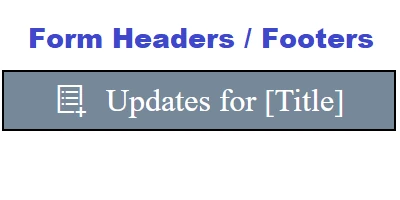
The standard SharePoint form's simplicity can be both a strength and a limitation. While it is straightforward, it often lacks in visual engagement and dynamic information display. The Form Header/Footer template from SharePoint Dashboards introduces a stylish and attention-grabbing form header. By using this template, users can inject personalized styles such as background color, text color, border color, font size, and font family. This customization not only makes the form more appealing but also aligns it with the company's branding guidelines, thus increasing user engagement and ensuring brand consistency.
The template is incredibly user-friendly. Users can preview exactly how the styled form will look before deploying it. Once satisfied with the design, the deployment is as simple as copying and pasting the template directly into SharePoint. This ease of use ensures that even those with minimal technical expertise can enhance their SharePoint forms effortlessly.
Dashboard Implementation and Use Cases
The enhancements facilitated by SharePoint Dashboard templates play a crucial role in several key areas of organizational management:
- Charting and Visual Indicators: Dynamic dashboards allow for real-time data visualization through charts and visual indicators. This feature is essential for teams that rely on data-driven decision-making, as it provides instant insights into performance metrics.
- Project Approvals: Integrating these dashboards into project management workflows streamlines the approval process. Stakeholders can quickly identify pending tasks and approve them without having to sift through extensive data manually.
- Employee Management: Managers can better track team availability, workloads, and performance through visually enhanced SharePoint lists and forms, leading to more effective resource allocation.
- Status Tracking: Keeping track of project or task statuses becomes straightforward with visual cues and indicators, removing room for error and increasing transparency across teams.
Consider a scenario where a marketing team is collaborating on a product launch. Using a shared dashboard, team members can track project progress, update tasks, and view visual data insights regarding campaign performance. This fosters better communication and ensures that everyone is on the same page, thus driving the project toward timely completion.
Improved Team Communication through Dashboards
A shared dashboard fosters improved communication within teams dramatically. By providing a centralized location for all critical project information, dashboards eliminate the silo effect where information is dispersed across various platforms and formats. When team members have easy access to updated information, it naturally enhances communication and collaboration. Transparent status indicators and visual representations of data ensure that all team members, irrespective of their department, understand project timelines, milestones, and current standings. This level of clarity reduces misunderstandings and facilitates smoother project execution.
Setting Up Dashboards Using SharePoint Templates
Setting up a dashboard in SharePoint using templates from SharePointDashboards.com is a seamless process. After signing up for a free account, users gain access to 21 free templates. The deployment process is straightforward; users can select a suitable template, preview it to ensure that it aligns with their requirements, and then copy and paste the template directly into SharePoint. This simple implementation process saves time and resources that would otherwise be spent on custom development.
Understanding SharePoint JSON Formatting
SharePoint JSON formatting plays a critical role in how information is displayed in lists and libraries. By applying a JSON template, users can transform a plain SharePoint list into an interactive and visually appealing tool. JSON formatting allows for the customization of how columns are displayed, incorporating conditional formatting and custom actions that enhance user interactivity. These formatted views are integral to building effective dashboards because they enable real-time data monitoring and provide visual cues that guide user actions.
In conclusion, the ability to enhance SharePoint forms and lists through templates and JSON formatting offers organizations a powerful means of improving information dissemination, project management, and team communication. By utilizing resources available at
SharePointDashboards.com, teams can transform the way they interact with data and collaborate, leading to enhanced productivity and successful outcomes.